Getting Started with NVivo for Mac
Topic outline
-
Welcome to Intersect’s Getting Started with NVivo for Mac.
Prerequisites
There is no prerequisite knowledge required to attend this course. A local installation of NVivo for Mac is required to follow along.
Outline
-
Files needed for this course
Please download and unzip onto your desktop the files needed for this course here. There should be 6 files: 3 x PDFs, 2 x Word docs and 1 Excel file.
Who is this course for?
Anyone! But it has specifically been written for researchers and higher degree research students who would like an introduction to using NVivo for their qualitative research. It may not be appropriate for those with prior NVivo experience or those using NVivo for Windows.
What will be covered in the course?
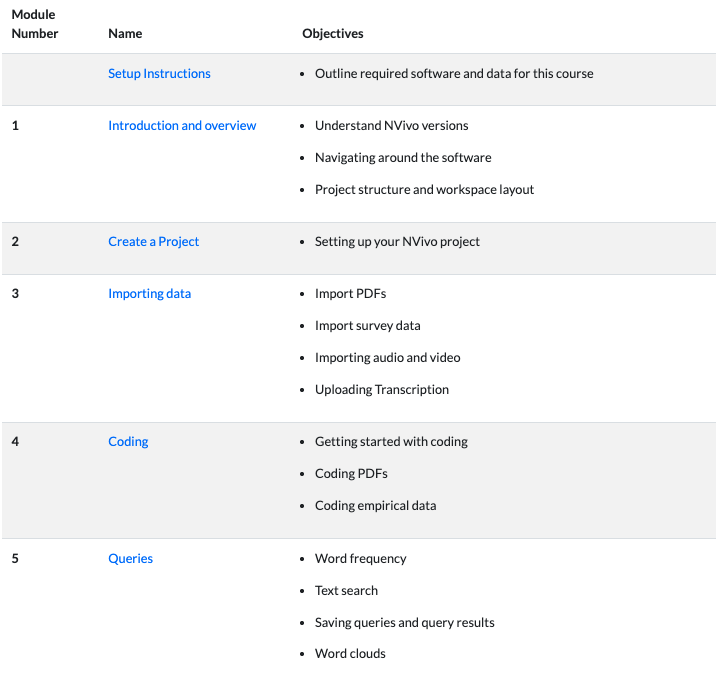
- Create and organise a qualitative research project in NVivo
- Import a range of data sources using NVivo’s integrated tools
- How to code your data
- Text Search and Word Frequency queries
-
Introduction and overview
NVivo allows researchers to simply organise and manage data from a variety of sources including surveys, interviews, articles, video, email, social media and web content, PDFs and images. Coding your data allows you to discover trends and compare themes as they emerge across different sources and data types.
Why use NVivo?
- NVivo allows you to import and store all of your sources (data) in one place: journal articles, video and audio recordings, survey results, and interview transcripts etc.
- NVivo helps to manage, shape, and make sense of unstructured data and information by providing tools to help facilitate the analysis of data, allowing themes to emerge
- Various tools allow you to query and visualise your data
What NVivo cannot do
As powerful as NVivo is, it does not do the intellectual thinking for you! You have to do the thinking to determine what is important in your data, what is worth coding, and how your data ultimately answers your research questions. NVivo is a tool that can facilitate this, but it can’t do it for you.
Which version of NVivo?
Intersect training is based on NVivo14 and NVivo 15 for Mac. These two versions use the same file format, so there is very little difference between them. The screenshots in this guide are from NVivo14. There also seems to be very little difference between 14, 15, and ‘Release 1’, also known as NVivo20. Depending on your home institution, you may be accessing a different version of NVivo.
If you are working in a team and you need to share your NVivo project, you must all use the same operating system (i.e. Mac or Windows). It is not possible to share between Mac and Windows platforms. NVivo is not backwards compatible, with the exception of NVivo14/15. Further information on version compatibility can be found here.
Switching versions
You can check which version of NVivo you are using by selecting File –> Options and selecting from versions available to you. Your NVivo version is also displayed on the landing page upon first opening NVivo.
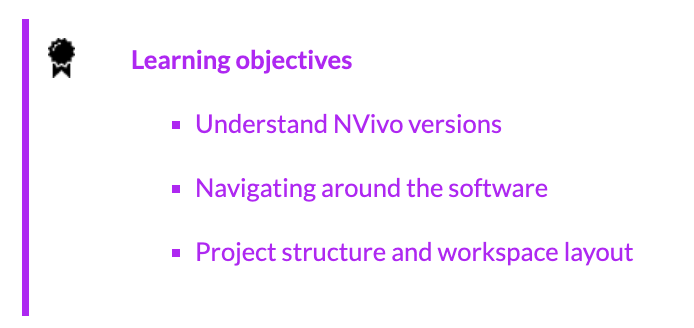
Navigating around the software
The initial interface you will come to is known as the Launch Pad (Figure 1). NVivo comes preloaded with a sample project that you can test out anything we will learn today or explore additional tools without impacting your own research project.

Depending on how your university license is configured, after installing NVivo you may need to log into ‘My NVivo.’
Project structure and Workspace layout
All NVivo projects have a basic pre-set structure which cannot be modified. You can, however, add whatever you need to it – create folders and storage systems within the database. NVivo uses the tabs to organise all of the function commands available. These have been grouped into their related functions or activities within the software. The primary tabs are Home; Edit; Import; Create; Explore and Share and Modules. These will be visible at all times.
In this introductory course we will be looking at the Data and Coding areas of an NVivo project, and the Import and Explore functionalities.
The NVivo workspace is made of three main areas known as the Navigation View (A), the List View (B) and the Detail View (C). Navigation view is where we move around the software and access all of the project items you create.

Once the file item you want has been selected in the Navigation View (in the above example ‘Interviews’), then the List View is populated with its content, in this case, 14 interview files. Double click the individual item you want in the List View – it will open in Detail View on the right hand side of the screen.
Saving your project
NVivo DOES NOT save after every activity you do. It has an automatic save reminder which by default will activate following 15 minutes of actual active work. Alternatively, when you set up your project, you can select the autosave option. It is recommended that you save regularly to avoid losing any work.
Always, always, ALWAYS …
Save more than one copy of your work. Use the LOCKSS principle – ‘Lots of Copies Keeps Stuff Safe.’
-
Create a Project
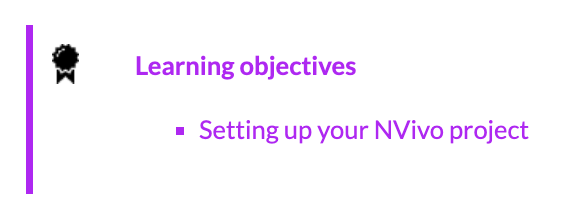
From the Launch Pad, click on the New Project box at the top of the Launch pad (in the red circle, Figure 3):

- A New Project dialogue box appears
- Enter a name for your new project (red circle, Figure 4), and include a description if you wish.
- Select where you want to save it, or leave the default
- Optional: Tick the ‘Autosave project box
- Click ‘Create Project’

Your NVivo files will be stored with the file extension ‘.nvpx’
Task
Open NVivo, and commence a new project titled “Training”.
-
Importing data
This course will use various file types relating to Research Data Management (RDM). This is the research question that we are trying to answer:
What are researchers’ attitudes towards research data management?
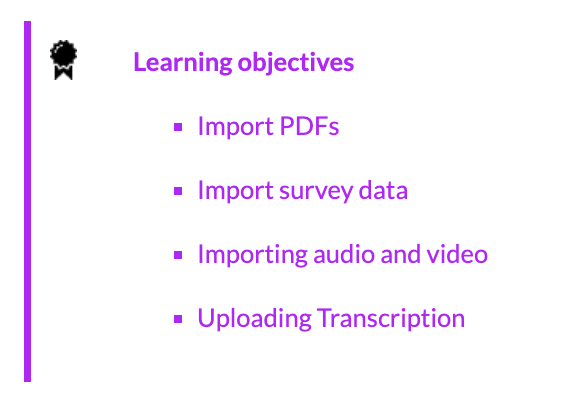
Importing PDF documents
- Go to the Import tab → Files → PDF

- Navigate to where you have saved the files that were sent to you
- Select 01a_RDM and data sharing behaviour of university researchers.pdf
- Click Import (red circle in screenshot below)

-
-